If you see the warning “CSS not selected for this destination” in your Google Merchant Center account, don’t panic. This issue isn’t related to your Google Ads campaigns; it pertains exclusively to the “Free listings” program. In this article, you’ll learn how to easily resolve this issue:
- What does this warning mean?
- “Free listings” program – important rules
- How to disable the “Free listings” program?
- How to choose which Merchant Center account displays products for “Free listings”?
- What if I don’t see these settings?
What does this warning mean?
The “CSS not selected for this destination” message refers to the “Free listings” program, which allows your products to appear for free in the Google “Shopping” tab.
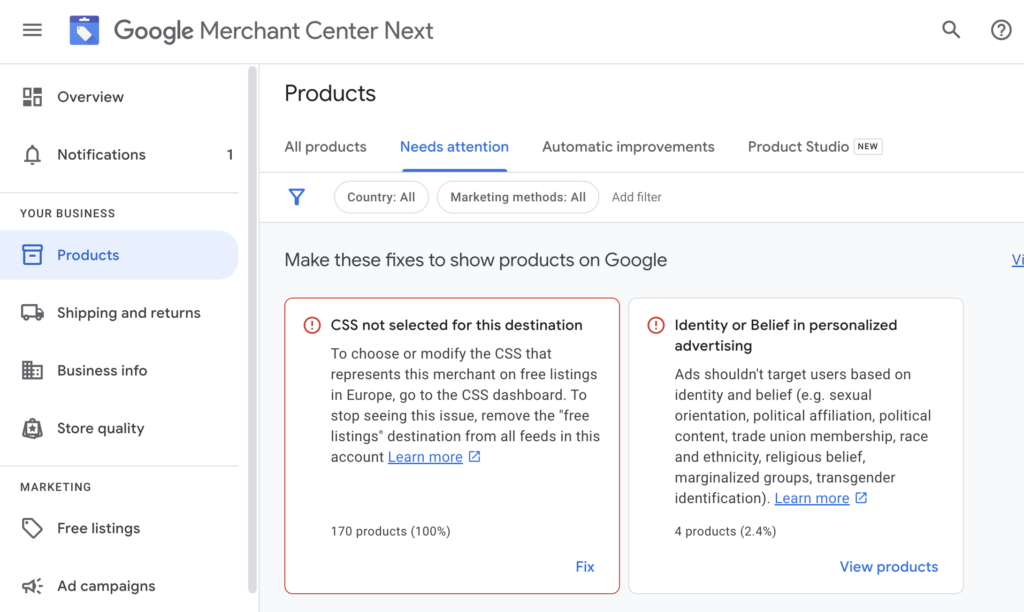
This issue doesn’t affect product approval or your Shopping Ads on Google Ads. It is entirely separate, so you can continue running your ad campaigns without any issues.
“Free listings” program – important rules
The “Free listings” program can only be active on one Google Merchant Center account for your online store. If you have multiple Merchant Center accounts (for example, a Sellie CSS account and a Google Shopping account), the “Free listings” program can only be activated on one of them.
Unlike Google Ads, which can simultaneously use several Merchant Center accounts, the “Free listings” program can only operate on a single account.
If you want to learn more about Google’s “Free listings” program, please see this Google help article: https://support.google.com/merchants/answer/13889434
How to disable the “Free listings” program?
To disable the “Free listings” program, log in to the Google Merchant Center account where you wish to deactivate it. Next, navigate to the menu and select “Free listings,” then click “Stop displaying products.”
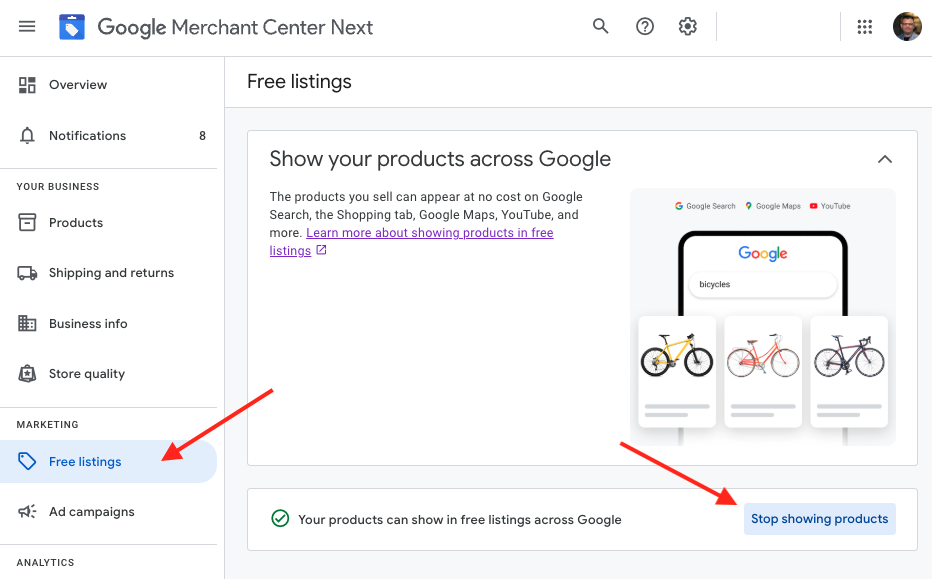
The program will be disabled for that account, and the warning “CSS not selected for this destination” should soon disappear.
Your Google Ads Shopping campaigns will continue to run correctly.
How to choose which Merchant Center account displays products for “Free listings”?
Because the “Free listings” program can be active on only one Merchant Center account at a time, having multiple accounts will result in this warning appearing on the other accounts.
In this case, choose one Merchant Center account that is fully configured and has approved products. Then, disable the “Free listings” program on all other accounts.
To specify the selected account, go to Settings > Comparison Shopping Services:

Then expand the “CSS selection for free listings” section:

Click “Make this the CSS for free listings in Europe” next to your chosen Merchant Center account:

What if I don’t see these settings?
If you don’t see the settings described above, access your Google Merchant Center account of the type Google Shopping (not CSS). If you have such an account, you can set the preferred account for “Free listings” there.
If you don’t already have a Google Shopping type Merchant Center account (not CSS), you must first create one and verify your store’s domain on this new account. Once verified, the option to select an account responsible for the “Free listings” program will become available.
Don’t have a Sellie CSS Merchant Center account yet?
Check out the current offer and get started now!